
 "
"
How to Use the Calendar Widget in Woffice






TL;DR
Woffice includes a built-in calendar widget — no separate calendar plugin needed. To set it up: install Woffice and activate all dependent plugins, then go to Woffice → Extensions and activate the Calendar Event extension. From there, go to Appearance → Widgets and drag the Woffice Calendar Event widget into your right sidebar or footer. Set a title, set visibility to General, save — and your calendar is live. Create new events directly from the sidebar widget with one click.
An Overview
One of the important features to keep an eye out for when picking an Intranet WordPress theme is a calendar widget.
A calendar widget has many uses. For one thing, it makes appointment booking possible on your website.
Also, a calendar widget will come in handy when you have an upcoming event and want to remind people about it. This feature will be very useful if you run a project and task management platform.
And there’s still more!
This then begs the question: how do you add a calendar widget to your Intranet site?
Simple. With Woffice theme!
Woffice – one of the most popular Intranet WordPress themes in the market that sells for only $79 – comes with a robust, powerful calendar widget.
As such, you won’t need another calendar plugin with Woffice in place.
In this post, I will be showing you how to use this calendar widget. But first, what is a calendar widget used for?
What Is a Calendar Widget Used For?
If you run a business or an organization with lots of team members in it, you will agree that maintaining a steady flow of communication is important. This is where setting up an intranet becomes needful – it helps keep your team talking and, hence, connected.
And when you’ve finally set up a communication channel via an intranet, the next thing to deal with is the regular stream of events that will follow suit.
This is where a calendar widget comes into play. It gives you an avenue to set up an event and remind your team members about it.
Interestingly, the Woffice calendar widget allows you to customize your events to your heart’s content.
How to Use Woffice Calendar Widget
📝 Editor’s note (July 2026): The steps and screenshots below reflect an earlier version of Woffice. The core workflow remains the same, but some navigation paths and UI screens may look different in your current version. For the most up-to-date walkthrough, refer to the live Woffice demos.
Here are the steps to using Woffice calendar widget in WordPress
Step 1: Download and Install Woffice Theme
To do that, you will need to head over to Themeforest and purchase the theme. After purchasing, download and activate the plugin on your WordPress intranet, just like you would with any other theme
After downloading the theme from Themeforest, locate the woffice-4.0.2 zipped file. This is actually the installable file.
When you are done with installation and activation, proceed to the next step.
Step 2: Install all Dependent Plugins
Certain plugins need to be installed and activated for Woffice to work effectively. To install them, click the Begin installing plugins link like so:
After clicking the link, you will be taken to the plugin installation page. Select all the plugins by simply clicking the Plugins checkbox. Once you’ve done that, select Install from the Bulk actions dropdown box.
With all the plugins selected and bulk action set to install, hit the Apply button.
Upon click, all the selected plugins will be installed. Next is to activate them.
To do that, navigate to Plugins >> Installed Plugins. Select all the plugins like you did previously. Then, from the dropdown menu, select Activate and finally apply.
With that, all dependent plugins have been installed and activated.
Step 3: Add the Calendar Event Extension
To begin using the calendar widget on your WordPress intranet, you first need to add the extension.
To do that, navigate to Woffice >> Extensions
On the next page, locate the Woffice Calendar Event extension. When you have, click the Activate button like so:
Step 4: Add the Calendar Event to Sidebar and Footer
After activating the event calendar extension, the next step now is to add it to your intranet website.
Woffice gives you the option to add the calendar event to the right sidebar or footer section of your site.
To do so, navigate to Appearance >> Widgets
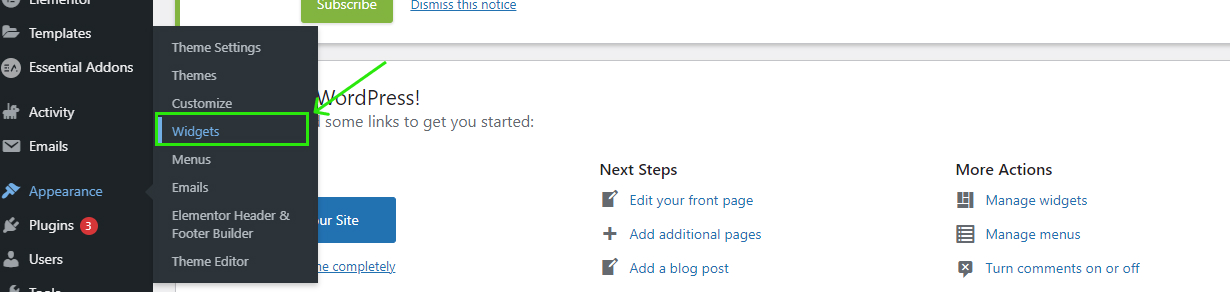
When you do that, the widget page will appear.
To add a widget to the right sidebar of your site, locate the Woffice Calendar event widget and drag it to the right sidebar like so:
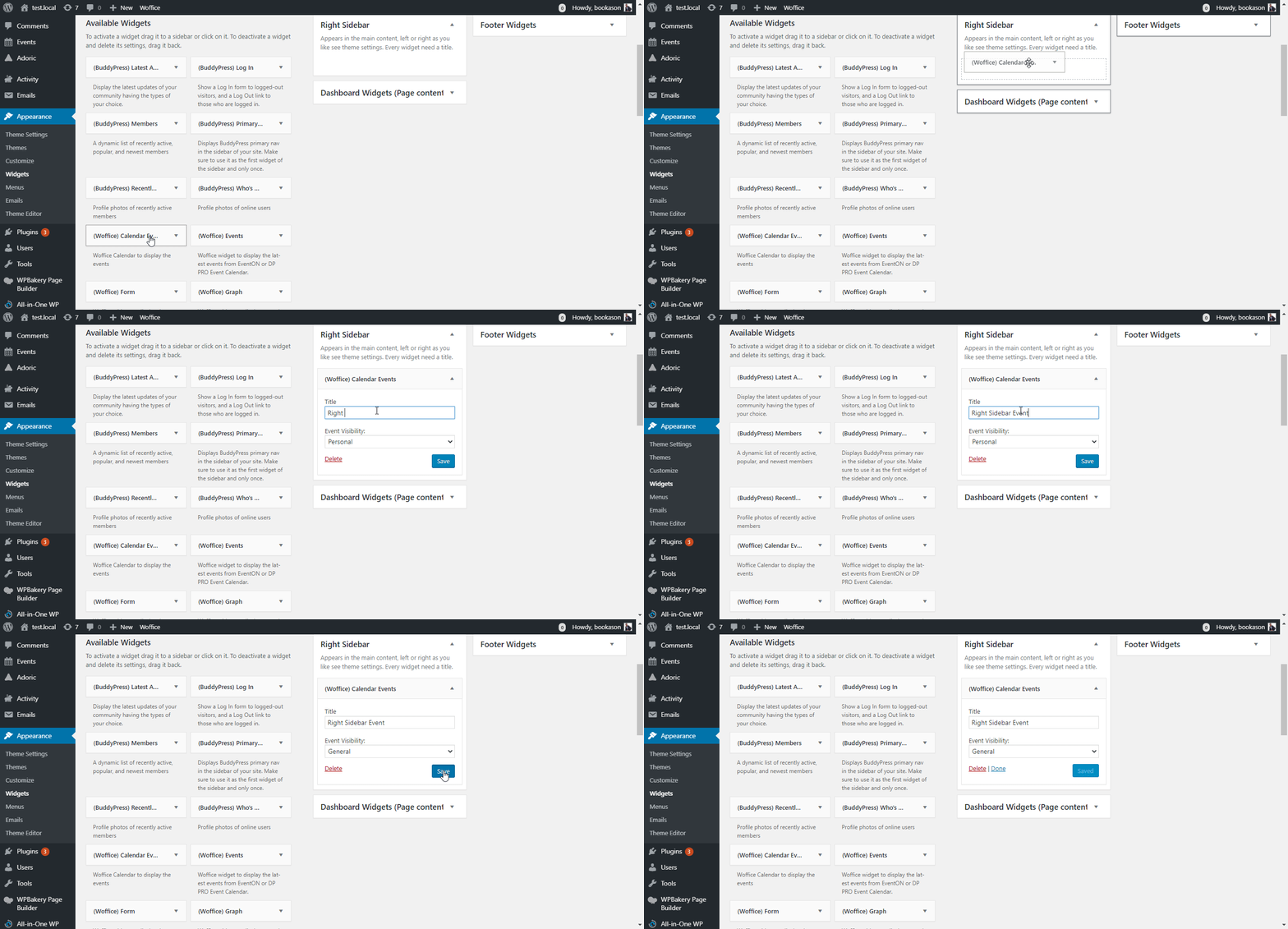
Next, set a title for the event, change the visibility to General, and then Save.
And with that, you have a live calendar event on the right sidebar of your intranet website.
If you would rather add the widget to the footer of your website, drag it to the Footer Widgets instead.
Save and you are done!
To create a new event from your site’s sidebar, click the Create a New Event button. Give the event a name, set all parameters and save.
Conclusion
The Woffice calendar widget is one of those features that quietly makes a big difference to how an intranet actually runs day to day. Instead of chasing team members with reminders or relying on a separate calendar tool, everything lives inside your Woffice platform, including the events, scheduling, and team visibility in one place.
The four-step setup takes under ten minutes, requires no additional plugins, and works whether you want the calendar in your sidebar or footer.
If you’re not yet running Woffice as your WordPress intranet, the calendar widget is one of many built-in features alongside project management, a members map, a knowledge base, HR tools, and a custom login page that make it a genuinely complete platform rather than just a theme.
👉 Explore all Woffice features · Try the demo · View pricing
FAQs
What is the Woffice calendar widget?
The Woffice calendar widget is a built-in event calendar tool included with the Woffice WordPress intranet theme. It allows you to display upcoming events in the sidebar or footer of your intranet site, create new events directly from the widget, and keep your team informed — without needing a separate calendar plugin.
Do I need an extra plugin for the Woffice calendar widget?
No. The calendar functionality is part of Woffice’s built-in extensions system. You activate it from Woffice → Extensions — no third-party calendar plugin required. This keeps your plugin stack lean and eliminates compatibility issues.
Where can I display the Woffice calendar widget on my site?
Woffice gives you two placement options: the right sidebar or the footer widgets area. Both are configured from Appearance → Widgets by dragging the Woffice Calendar Event widget into your preferred location.
Can I create events directly from the calendar widget?
Yes. Once the widget is live on your sidebar, a Create a New Event button appears directly within it. You can name the event, set all parameters, and save — without going into the WordPress backend.
Is the calendar widget available on all Woffice plans?
The calendar event extension is included in the core Woffice theme. You can activate it from the Extensions panel after installing and setting up Woffice. For the latest information on what’s included in your version, check the official Woffice documentation.